Emailing
If you’d like a second email address with Googlemail, Hotmail
or Yahoo Mail, here are the links to the main pages for signing up:
http://mail.google.com
http://uk.msn.com > Hotmail (icon at top right of page)
http://uk.mail.yahoo.com
You are more likely to get a personalised email address with something
new that Yahoo has set up … Ymail :
http://new.mail.yahoo.com/addresses
select ymail from New Yahoo IDs > Get it Now
Sending a bulk email to a group of people (more than 20), is possible with Outlook Express, Outlook & with Googlemail.
The basic idea is to have your own email address in the top address box
(the To box), and to put everyone else’s email addresses in the Bcc box.
Addresses placed here will be hidden from view.
In Gmail, go to Contacts > All Contacts > Select All
(deselect any you wish) > email.
All email addresses are now in the To box.
Transfer them to the Bcc box by a copy & paste method
(Ctrl + A, Ctrl + C and then Ctrl + V).
Delete the addresses in the top box (Ctrl + A, delete/backspace key).
Put your own email address in the To box, and then proceed with the
rest of your email.

Thursday, June 04, 2009
Online Supermarket Shopping.
Today we had a look mainly at the grocery section of Tesco online,
together with the comparison site: mysupermarket.com. We also had
a glimpse at the Asda, Sainsbury and Ocado sites, and the
Abel & Cole one too.
You can access these all via Google. Check out a suitable delivery
time and price, before you start your shopping ... all of the
grocery offers you'll see, have expiry dates. The Help section on
the Tesco site is very helpful.
I forgot to mention that Abel and Cole site has a useful recipe
section on what to do with unusual vegetables such as kale and
celeriac.
If you were shopping for an expensive item as a Xmas pressie to
someone, say a large bottle of Jack Daniel's whisky, you could use
mysupermarket.com to see if there were any offers on.
If you were to find your favourite wine on offer on the shelves of
your local Tesco, you could go online and order it in bulk (to save
you having to carry it home yourself).
It's generally a good idea to use Google to access the above sites.
You should avoid clicking on links you might see in emails, in case
you are led to a bogus website.
Today we had a look mainly at the grocery section of Tesco online,
together with the comparison site: mysupermarket.com. We also had
a glimpse at the Asda, Sainsbury and Ocado sites, and the
Abel & Cole one too.
You can access these all via Google. Check out a suitable delivery
time and price, before you start your shopping ... all of the
grocery offers you'll see, have expiry dates. The Help section on
the Tesco site is very helpful.
I forgot to mention that Abel and Cole site has a useful recipe
section on what to do with unusual vegetables such as kale and
celeriac.
If you were shopping for an expensive item as a Xmas pressie to
someone, say a large bottle of Jack Daniel's whisky, you could use
mysupermarket.com to see if there were any offers on.
If you were to find your favourite wine on offer on the shelves of
your local Tesco, you could go online and order it in bulk (to save
you having to carry it home yourself).
It's generally a good idea to use Google to access the above sites.
You should avoid clicking on links you might see in emails, in case
you are led to a bogus website.

Thursday, May 28, 2009
A free Desktop calendar
Those of you who are Windows XP users might like to have a calendar
like this on your screen.
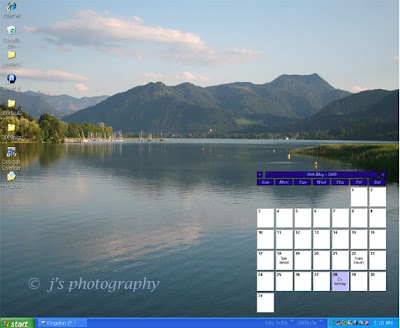
It’s still available as a free download from the following website.
http://tinnes.org.uk/desktopcalendar/download.htm
You can re-position the calendar simply by clicking on the top blue
tag, and then dragging it to a new position (almost off screen, if you
prefer). To add or delete text, you have to do a double mouse click on
one of the dates to bring up a small pop-up window.
Those of you who are Windows XP users might like to have a calendar
like this on your screen.

It’s still available as a free download from the following website.
http://tinnes.org.uk/desktopcalendar/download.htm
You can re-position the calendar simply by clicking on the top blue
tag, and then dragging it to a new position (almost off screen, if you
prefer). To add or delete text, you have to do a double mouse click on
one of the dates to bring up a small pop-up window.
Wednesday, May 13, 2009
Dodgy emails and spam
Brian Morgan sent me this interesting email, following on from his
comments at our Computer Club meeting last week ....
"Thinking of the brief discussion about FWDs last week, perhaps there
is room for more thought in the Group. Could you include this as a blog
for folks to chunter over?
EASY MONEY JOBS. Passing on a tip from my bank on those
phoney jobs and cash transactions.
The jobs are almost NEVER there. The JOBS messages usually feature
easy money and invariably ask for your personal details including your
bank account. NEVER RESPOND UNLESS YOU CAN CHECK THEM OUT IN
DETAIL.
Cash transfers. These are all phoney and mostly illegal involving
money laundering, which is an offence. Should you be silly enough to
engage with these people and you lose money to them YOU ARE NOT
COVERED BY YOUR BANK AGAINST ANY SUCH LOSS. My bank will
close the account and ban you as a customer! So apart from aiding
criminal gangs and losing money, you will also lose your ability to
have a bank account. OUCH!
These decidedly dodgy emails are cousins to that other menace - SPAM.
Most spams have the specific task of identifying real email addresses
that they can exploit. So don't open them or respond to any spams, let
your system deal with them and delete them in due course. If you open
them there is a real risk to your system, especially if your anti-virus
system is not up to date.
FWD messages are spams which you may may the mistake of
responding to.
No matter how worthy they seem resist every temptaion to open them or
send them on! FIRST - YOU SHOULD NOT PASS ON YOUR CONTACTS'
ADDRESSES TO ANY PASSING FWD MESSAGE WITHOUT THEIR CONSENT.
You will be exposing them as well as yourself to more spams and
potential risk.
AND you are adding to your own spam problem! Among all those names is
each clutch of FWD names is a name that is harvesting email addresses,
either for spam creation or for a nefarious purpose. Think about it;
how can you possibly know if every address on that email with one or
more FWD is legit?
You cannot possibly know that so you really putting yourself and all
your contacts at risk or inconvenience. You cannot save the world by
passing on the FWD spams/chain letters but you can save many people
much trouble if you simply delete it on sight!
A simple rule is "if you don't recognise it, delete it, unopened!" And
watch the number of spams you get decrease to a quite small number.
Cheers,
Brian Morgan"
Brian Morgan sent me this interesting email, following on from his
comments at our Computer Club meeting last week ....
"Thinking of the brief discussion about FWDs last week, perhaps there
is room for more thought in the Group. Could you include this as a blog
for folks to chunter over?
EASY MONEY JOBS. Passing on a tip from my bank on those
phoney jobs and cash transactions.
The jobs are almost NEVER there. The JOBS messages usually feature
easy money and invariably ask for your personal details including your
bank account. NEVER RESPOND UNLESS YOU CAN CHECK THEM OUT IN
DETAIL.
Cash transfers. These are all phoney and mostly illegal involving
money laundering, which is an offence. Should you be silly enough to
engage with these people and you lose money to them YOU ARE NOT
COVERED BY YOUR BANK AGAINST ANY SUCH LOSS. My bank will
close the account and ban you as a customer! So apart from aiding
criminal gangs and losing money, you will also lose your ability to
have a bank account. OUCH!
These decidedly dodgy emails are cousins to that other menace - SPAM.
Most spams have the specific task of identifying real email addresses
that they can exploit. So don't open them or respond to any spams, let
your system deal with them and delete them in due course. If you open
them there is a real risk to your system, especially if your anti-virus
system is not up to date.
FWD messages are spams which you may may the mistake of
responding to.
No matter how worthy they seem resist every temptaion to open them or
send them on! FIRST - YOU SHOULD NOT PASS ON YOUR CONTACTS'
ADDRESSES TO ANY PASSING FWD MESSAGE WITHOUT THEIR CONSENT.
You will be exposing them as well as yourself to more spams and
potential risk.
AND you are adding to your own spam problem! Among all those names is
each clutch of FWD names is a name that is harvesting email addresses,
either for spam creation or for a nefarious purpose. Think about it;
how can you possibly know if every address on that email with one or
more FWD is legit?
You cannot possibly know that so you really putting yourself and all
your contacts at risk or inconvenience. You cannot save the world by
passing on the FWD spams/chain letters but you can save many people
much trouble if you simply delete it on sight!
A simple rule is "if you don't recognise it, delete it, unopened!" And
watch the number of spams you get decrease to a quite small number.
Cheers,
Brian Morgan"
Thursday, May 07, 2009
Computer Club Q&A session
A couple of today’s topics …
First of all, one of our members wished to set up an email site for
his wife. I recommended using one of three email services …
Googlemail … which is my favourite
Hotmail
Yahoo UK.
Click on these to see the opening website pages, where you can sign
up. Save the page(s) onto your list of Favourites, for easy access in
future.
The signing up process is fairly easy. The hardest part is to create
a username and password for yourself. As regards the latter, have a
think about a popular nursery rhyme and add numbers to create a 10/11
character password.
(eg … ssmapgttf53 … I’ll leave you to work out what the rhyme is).
I use Hotmail for business use and Gmail for family and friends … I
could discard the former (and start another one), if it were to get
too much spam. My Gmail site is spam-free, as I only contact family
& friends with it.
Gmail has the fabulous Google search facility for key words … so I
could enter “Ken Bates” into my search box, and bring up all my
email correspondence with Ken.
I find that the advertising with Gmail is less intrusive than that
with Hotmail and Yahoo. I hate adverts which flash at me.
Sending bulk emails
The main thing to do here is to hide all the email addresses in
the “BCC” box (BCC = blind carbon copy), and to put your email
address in the “To” box.
It’s a bit fiddly setting one of these up, but I’ll show you how
to do it in a future talk on emailing.
Gmail and Outlook Express will allow you to email more than 20
people in one bulk email. My wife uses the OE, so I use Gmail
for emailing all our U3A members.
I gave a short presentation on how to improve the visibility of
your mouse pointer and also the text on your computer screen.
Mouse pointer
Click on Start > Control Panel > Mouse icon
The two sections to look at are “Pointer” and “Pointer Options”
Under “Pointer”, select “Windows Standard (extra large) system
scheme” > Apply > OK.
Under “Pointer Options”, have a look at the mouse trail and the
radiation effects, to highlight where the pointer is on your screen.
Size of text on an internet page.
Click on some white space on the page.
Press down the Control key while turning the mouse wheel one way
and the other. See what happens to the text.
Size of text on a Word document
On the top toolbar, change the magnification of the page from
the standard 75% to 150% (which is what I use). This does not
affect the document when it comes to saving or printing it.
Another way is to highlight part or all of the text, and then
to change your font size. Ctrl + the letter A is the keyboard
shortcut to highlight/select all of your text. Or you could use
a backwards sweep of your mouse to highlight part or all of the
text.
Contrast / colour of the text.
To increase contrast, highlight the text and then press the B
icon on the top toolbar, to change the font to a Bold font.
To lessen the contrast, highlight the text and then change the
colour of your text from black to medium grey. The colour icon
is the underlined letter A on the top toolbar.
Invert the colour scheme of your Word document or internet page
… so the text is white on a black background.
Press these three keys at the same time …
Left Shift key + Left ALT key + Prt Scr (print screen) key.
Say “yes” to the menu query that pops up.
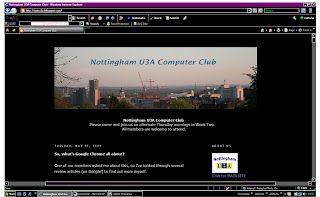
click on this photo to enlarge it)
To change back to the standard appearance, press the same
3 keys again.
A couple of today’s topics …
First of all, one of our members wished to set up an email site for
his wife. I recommended using one of three email services …
Googlemail … which is my favourite
Hotmail
Yahoo UK.
Click on these to see the opening website pages, where you can sign
up. Save the page(s) onto your list of Favourites, for easy access in
future.
The signing up process is fairly easy. The hardest part is to create
a username and password for yourself. As regards the latter, have a
think about a popular nursery rhyme and add numbers to create a 10/11
character password.
(eg … ssmapgttf53 … I’ll leave you to work out what the rhyme is).
I use Hotmail for business use and Gmail for family and friends … I
could discard the former (and start another one), if it were to get
too much spam. My Gmail site is spam-free, as I only contact family
& friends with it.
Gmail has the fabulous Google search facility for key words … so I
could enter “Ken Bates” into my search box, and bring up all my
email correspondence with Ken.
I find that the advertising with Gmail is less intrusive than that
with Hotmail and Yahoo. I hate adverts which flash at me.
Sending bulk emails
The main thing to do here is to hide all the email addresses in
the “BCC” box (BCC = blind carbon copy), and to put your email
address in the “To” box.
It’s a bit fiddly setting one of these up, but I’ll show you how
to do it in a future talk on emailing.
Gmail and Outlook Express will allow you to email more than 20
people in one bulk email. My wife uses the OE, so I use Gmail
for emailing all our U3A members.
I gave a short presentation on how to improve the visibility of
your mouse pointer and also the text on your computer screen.
Mouse pointer
Click on Start > Control Panel > Mouse icon
The two sections to look at are “Pointer” and “Pointer Options”
Under “Pointer”, select “Windows Standard (extra large) system
scheme” > Apply > OK.
Under “Pointer Options”, have a look at the mouse trail and the
radiation effects, to highlight where the pointer is on your screen.
Size of text on an internet page.
Click on some white space on the page.
Press down the Control key while turning the mouse wheel one way
and the other. See what happens to the text.
Size of text on a Word document
On the top toolbar, change the magnification of the page from
the standard 75% to 150% (which is what I use). This does not
affect the document when it comes to saving or printing it.
Another way is to highlight part or all of the text, and then
to change your font size. Ctrl + the letter A is the keyboard
shortcut to highlight/select all of your text. Or you could use
a backwards sweep of your mouse to highlight part or all of the
text.
Contrast / colour of the text.
To increase contrast, highlight the text and then press the B
icon on the top toolbar, to change the font to a Bold font.
To lessen the contrast, highlight the text and then change the
colour of your text from black to medium grey. The colour icon
is the underlined letter A on the top toolbar.
Invert the colour scheme of your Word document or internet page
… so the text is white on a black background.
Press these three keys at the same time …
Left Shift key + Left ALT key + Prt Scr (print screen) key.
Say “yes” to the menu query that pops up.

To change back to the standard appearance, press the same
3 keys again.
Tuesday, May 05, 2009
So, what's Google Chrome all about?
One of our members asked me about this, so I've looked through several
review articles (on Google!) to find out more myself.
It is an alternative web browser to surf the internet with ~ an
alternative to Internet Explorer 7 and Firefox, which you might be
using at present. Google created this to make internet use a smoother
and a more enjoyable experience.
To give you an idea of what it looks like, have a look at these YouTube
videos, and then have a look at the review articles I've chosen.
As regards the controls at the bottom of the YouTube screen, click on
the little TV screen if you wish to enlarge the picture to fit your
computer screen. Press the Esc key on your keyboard, to "go back".

(click on this photo to enlarge it)
http://www.youtube.com/watch?v=Xlh8gSF_hhE&feature=related
(Google’s own video, giving you a taster)
http://www.youtube.com/watch?v=Y4DfHPlWC6U&feature=related
(one user’s experience – noisy advert at the end of it)
Review articles
(The initial version of GC came out in September 2008, so the
first review article here is about the updated version of GC.)
http://www.pcworld.com/reviews/product/32156/review/chrome.html (Dec 08)
http://www.pcpro.co.uk/reviews/222615/google-chrome.html (Sept 08)
http://www.pcpro.co.uk/reviews/222855 (Sept 08)
http://www.telegraph.co.uk/scienceandtechnology/3358306/Google-Chrome-browser-Review-of-reviews.html
(read the comments section – concerns re privacy/copyright) (Sep 08).
I'm sticking with Internet Explorer 7 for the time being.
One of our members asked me about this, so I've looked through several
review articles (on Google!) to find out more myself.
It is an alternative web browser to surf the internet with ~ an
alternative to Internet Explorer 7 and Firefox, which you might be
using at present. Google created this to make internet use a smoother
and a more enjoyable experience.
To give you an idea of what it looks like, have a look at these YouTube
videos, and then have a look at the review articles I've chosen.
As regards the controls at the bottom of the YouTube screen, click on
the little TV screen if you wish to enlarge the picture to fit your
computer screen. Press the Esc key on your keyboard, to "go back".

http://www.youtube.com/watch?v=Xlh8gSF_hhE&feature=related
(Google’s own video, giving you a taster)
http://www.youtube.com/watch?v=Y4DfHPlWC6U&feature=related
(one user’s experience – noisy advert at the end of it)
Review articles
(The initial version of GC came out in September 2008, so the
first review article here is about the updated version of GC.)
http://www.pcworld.com/reviews/product/32156/review/chrome.html (Dec 08)
http://www.pcpro.co.uk/reviews/222615/google-chrome.html (Sept 08)
http://www.pcpro.co.uk/reviews/222855 (Sept 08)
http://www.telegraph.co.uk/scienceandtechnology/3358306/Google-Chrome-browser-Review-of-reviews.html
(read the comments section – concerns re privacy/copyright) (Sep 08).
I'm sticking with Internet Explorer 7 for the time being.
Thursday, March 26, 2009
All about Website Addresses
At today’s Computer Club meeting, I showed members some basic features
about how website addresses (aka URLs) are made up.
The full website address for Tesco, for example, is …
http://www.tesco.com.
(where the www.tesco.com is known as the domain name)
The prefix: https denotes a secure webpage, such as a webpage for an
internet bank or supermarket checkout, where you’re being asked to enter
your personal details. Also look out for a gold padlock icon on such
a page.
Beware of email links to bogus websites, where you’re asked for personal
info by criminals. These website pages can look identical to the real ones.
It's a good idea to type your bank website address straight into the top
URL box ~ I showed members how to partially delete the Google one (back to
the www. and then add the name of a bank).
I showed ways of copying and pasting website addresses into address/URL
boxes, onto Word documents and onto emails. I talked about saving URLs
onto your list of favourites, and how to organise these into folders.
You can tidy up your favourites list by a drag & drop technique (putting
them into the yellow folders).
If you’re researching a topic such as your family history, I suggested
putting all the URLs onto a Word document, instead of saving them onto
your Favourites list, to reduce cluttering it up. You could then save
the Word document onto a CD-Rom or flash drive. (I use this method to
back up my entire Favourites list).
To access a website from the URL listed on a Word document, simply hover
your mouse pointer over the link. Windows will then tell you what to do.
If you’re sending someone an email containing a link say to your Flickr
site, you must include the http:// prefix in the address, to create a
link that works.
I also mentioned how to create a hyperlink … how to create a link from
a particular word (eg HERE) to a website. Check out the Help section,
on your Word document or search on Google for information on how to do
this.
To change your home page (which appears when you click onto the internet),
go to Tools > Internet Options > Use “current page”, such as Google or
the BBC.
Some of the websites I mentioned today included:
Café Nomad (one of our favourite vegetarian restaurants in Nottm)
Free BMD (free info on births, marriages & deaths)
Nigella’s meat balls in tomato sauce (we use Quorn balls & we omit adding
the cold water in making the sauce)
Rachel Allen’s chocolate amaretti cake
Multimap
http://www.multimap.com/maps/
Multimap page for the ICC in Nottm ~ postcode NG1 3FN
http://www.multimap.com/maps/?qs=ng1+3fn&countryCode=GB&mapData=&zoom=16&moveMap=0,0
To shorten long email addresses like the above,
try out TinyURL dot com and Bit.ly dot com
http://tinyurl.com/
http://bit.ly./
Inside Multimap are Ordnance Survey maps, which I find difficult to access.
Click on Interactive Maps > Basic Maps > Lake District.
To see the latter, I had to click on the minus icon twice (zooming out), before an OS Map of the Lake District appeared. Using both the navigation & zoom tools, it’s possible to move around the UK, to where you wish to go.
Here is a link to an OS map of Newstead Abbey, which you can zoom in on to see more detail, if you wish.
http://tinyurl.com/c9s7r3
Something you might find useful when sending someone an email say with 2 or more recipes on it, is to open a second internet page to search for the recipe information.
Start > Internet Explorer > Google … search for the webpage, copy the URL, and then paste it into your email.
This will work if you’re on Broadband, by the way.
In the discussion afterwards, Graham mentioned Google's new Streetview.
Have a look at the introductory video on how to use it, & on the map page,
zoom into a city centre and have a look around it (with the help of the
little orange man). I wandered up Mansfield Road from the Victoria Centre
as far as Aura, using Streetview.
Jo asked about buying a domain name, so we had a quick look at one of the
many sites that sell these (and offer web hosting too) ... Easily.co.uk.
You can buy a UK domain name for just over £5 a year, and Easily offers
you up to 3 email addresses with that name eg .. info AT nottu3a.co.uk,
whereby you can hide your personal email address(es). Your internet service
provider may offer you some free webspace to host your site, otherwise
you can pay a company like Easily to host it for you.
Check out Webs dot com for free or inexpensive websites, which are very easy
to set up.
At today’s Computer Club meeting, I showed members some basic features
about how website addresses (aka URLs) are made up.
The full website address for Tesco, for example, is …
http://www.tesco.com.
(where the www.tesco.com is known as the domain name)
The prefix: https denotes a secure webpage, such as a webpage for an
internet bank or supermarket checkout, where you’re being asked to enter
your personal details. Also look out for a gold padlock icon on such
a page.
Beware of email links to bogus websites, where you’re asked for personal
info by criminals. These website pages can look identical to the real ones.
It's a good idea to type your bank website address straight into the top
URL box ~ I showed members how to partially delete the Google one (back to
the www. and then add the name of a bank).
I showed ways of copying and pasting website addresses into address/URL
boxes, onto Word documents and onto emails. I talked about saving URLs
onto your list of favourites, and how to organise these into folders.
You can tidy up your favourites list by a drag & drop technique (putting
them into the yellow folders).
If you’re researching a topic such as your family history, I suggested
putting all the URLs onto a Word document, instead of saving them onto
your Favourites list, to reduce cluttering it up. You could then save
the Word document onto a CD-Rom or flash drive. (I use this method to
back up my entire Favourites list).
To access a website from the URL listed on a Word document, simply hover
your mouse pointer over the link. Windows will then tell you what to do.
If you’re sending someone an email containing a link say to your Flickr
site, you must include the http:// prefix in the address, to create a
link that works.
I also mentioned how to create a hyperlink … how to create a link from
a particular word (eg HERE) to a website. Check out the Help section,
on your Word document or search on Google for information on how to do
this.
To change your home page (which appears when you click onto the internet),
go to Tools > Internet Options > Use “current page”, such as Google or
the BBC.
Some of the websites I mentioned today included:
Café Nomad (one of our favourite vegetarian restaurants in Nottm)
Free BMD (free info on births, marriages & deaths)
Nigella’s meat balls in tomato sauce (we use Quorn balls & we omit adding
the cold water in making the sauce)
Rachel Allen’s chocolate amaretti cake
Multimap
http://www.multimap.com/maps/
Multimap page for the ICC in Nottm ~ postcode NG1 3FN
http://www.multimap.com/maps/?qs=ng1+3fn&countryCode=GB&mapData=&zoom=16&moveMap=0,0
To shorten long email addresses like the above,
try out TinyURL dot com and Bit.ly dot com
http://tinyurl.com/
http://bit.ly./
Inside Multimap are Ordnance Survey maps, which I find difficult to access.
Click on Interactive Maps > Basic Maps > Lake District.
To see the latter, I had to click on the minus icon twice (zooming out), before an OS Map of the Lake District appeared. Using both the navigation & zoom tools, it’s possible to move around the UK, to where you wish to go.
Here is a link to an OS map of Newstead Abbey, which you can zoom in on to see more detail, if you wish.
http://tinyurl.com/c9s7r3
Something you might find useful when sending someone an email say with 2 or more recipes on it, is to open a second internet page to search for the recipe information.
Start > Internet Explorer > Google … search for the webpage, copy the URL, and then paste it into your email.
This will work if you’re on Broadband, by the way.
In the discussion afterwards, Graham mentioned Google's new Streetview.
Have a look at the introductory video on how to use it, & on the map page,
zoom into a city centre and have a look around it (with the help of the
little orange man). I wandered up Mansfield Road from the Victoria Centre
as far as Aura, using Streetview.
Jo asked about buying a domain name, so we had a quick look at one of the
many sites that sell these (and offer web hosting too) ... Easily.co.uk.
You can buy a UK domain name for just over £5 a year, and Easily offers
you up to 3 email addresses with that name eg .. info AT nottu3a.co.uk,
whereby you can hide your personal email address(es). Your internet service
provider may offer you some free webspace to host your site, otherwise
you can pay a company like Easily to host it for you.
Check out Webs dot com for free or inexpensive websites, which are very easy
to set up.
Monday, March 16, 2009
Automatic Windows Updates and Norton Security
One of our members, Brian Morgan, sent me this info about enabling
Windows Automatic Updates on your computer (and using Norton
Security also) …
"For those who aren't already set up, with Windows XP go Control Panel,
then Security and then select the Auto update link, then select
auto update, and choose a time that you know the computer will be on
(away from any regular busy time). I know some people don't trust
auto updates but this Windows facility is vital in plugging gaps in
Windows as soon as..so they should forego their misgivings and trust
Windows.
I get the full Norton Security as part of my BT package so effectively
it is free, fully compatible with my browser and very wide ranging and
even though I don't like it as much as McAfee, hey! its free! Norton
also make it very difficult to safely uninstall it so I'm content to
leave things be."
JH adds …
If you are a Windows Vista user, you can set up Automatic Updates in
a similar way ....
Start > Control Panel > Security Shield (click on the shield icon).
Then you'll see the following page, where you can switch on the
Automatic Updates if it's not already on.
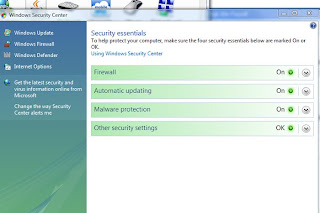
(click on this photo to see a larger image)
To remove Norton from your system (should you wish to try something
else), you will need to download the Norton Removal Tool.
Norton (Symantec)gives advice on how to do this on this webpage (click).
It's not easy to do this, as Brian says, and you might need to employ a computer expert to do this for you (such as Gary Bentley at GB Micros).
One of our members, Brian Morgan, sent me this info about enabling
Windows Automatic Updates on your computer (and using Norton
Security also) …
"For those who aren't already set up, with Windows XP go Control Panel,
then Security and then select the Auto update link, then select
auto update, and choose a time that you know the computer will be on
(away from any regular busy time). I know some people don't trust
auto updates but this Windows facility is vital in plugging gaps in
Windows as soon as..so they should forego their misgivings and trust
Windows.
I get the full Norton Security as part of my BT package so effectively
it is free, fully compatible with my browser and very wide ranging and
even though I don't like it as much as McAfee, hey! its free! Norton
also make it very difficult to safely uninstall it so I'm content to
leave things be."
JH adds …
If you are a Windows Vista user, you can set up Automatic Updates in
a similar way ....
Start > Control Panel > Security Shield (click on the shield icon).
Then you'll see the following page, where you can switch on the
Automatic Updates if it's not already on.

To remove Norton from your system (should you wish to try something
else), you will need to download the Norton Removal Tool.
Norton (Symantec)gives advice on how to do this on this webpage (click).
It's not easy to do this, as Brian says, and you might need to employ a computer expert to do this for you (such as Gary Bentley at GB Micros).
Friday, March 13, 2009
AVG anti-virus 8.5 software
A new version of the AVG anti-virus software is available.
Last night, I got a screen message from AVG inviting me
download the latest version. (I've got the older AVG 7.5
professional version on my Windows Vista machine).
AVG warned me that it will stop sending me daily updates
for AVG 7.5, after 30 April. (I didn't bother upgrading to
to 8.0 version when this one came out).
The whole upgrading process took about 45 minutes, so if
you're thinking of doing the same, please allow this amount
of time in your day to do so. After installation, AVG will
ask you to bring up to date all its updates ... it's
very important that you do so.
I've got a free version of Avast anti-virus software on
my older machine (Windows XP one), and I must get round to
upgrading this soon ... I keep ignoring Avast's messages
to do so, as it's often around midnight when I'm using the
computer. :)
Here are a few links to the relevant website pages for you
if you wish to take a peek ...
http://free.avg.com/
http://www.avast.com/eng/free_virus_protectio.html
On Martin Lewis' website: MoneySaving Expert dot com, there's
an excellent section of a whole range of free computer
security stuff which you can have a look at and download.
Here's a link to the relevant webpage ...
http://www.moneysavingexpert.com/shopping/free-anti-virus-software
A new version of the AVG anti-virus software is available.
Last night, I got a screen message from AVG inviting me
download the latest version. (I've got the older AVG 7.5
professional version on my Windows Vista machine).
AVG warned me that it will stop sending me daily updates
for AVG 7.5, after 30 April. (I didn't bother upgrading to
to 8.0 version when this one came out).
The whole upgrading process took about 45 minutes, so if
you're thinking of doing the same, please allow this amount
of time in your day to do so. After installation, AVG will
ask you to bring up to date all its updates ... it's
very important that you do so.
I've got a free version of Avast anti-virus software on
my older machine (Windows XP one), and I must get round to
upgrading this soon ... I keep ignoring Avast's messages
to do so, as it's often around midnight when I'm using the
computer. :)
Here are a few links to the relevant website pages for you
if you wish to take a peek ...
http://free.avg.com/
http://www.avast.com/eng/free_virus_protectio.html
On Martin Lewis' website: MoneySaving Expert dot com, there's
an excellent section of a whole range of free computer
security stuff which you can have a look at and download.
Here's a link to the relevant webpage ...
http://www.moneysavingexpert.com/shopping/free-anti-virus-software
Thursday, March 12, 2009
Looking at your digital photos
Digital photo frame
A lovely way to display your photos.
Mine is fiddly to set up.
You can upload photos from your computer onto a blank camera
memory card. I put the memory card into a card reader, and
then plug this into a USB port on my computer. I then add
a folder of photos onto the memory card by "drag & drop".
Windows Vista
Vista’s photo-gallery is brilliant & is a joy to use.
Click on “Views” on the top toolbar to see different views
(thumbnails, etc.). I find the view known as “List” very
helpful in picking out photos which I’ve renamed.
XnView
I think this is another brilliant way of looking at your photos.
You can download it free of charge from www.xnview.com
Select the English version when you do so.
Before downloading any program onto your computer, remember
to set up a RESTORE POINT, in case your computer were to crash
on program installation.
Start > Help and Support >> "Undo changes to your computer
with System Restore" It can take a while for your computer to
fully back itself up.
To start up the program, click on the XnView Desktop shortcut …
and then click on the filmstrip icon on the top toolbar
In the next window, you can browse & select your photos, set
the timer for a slide show, or view your photos one by one.
You’ll see the name for each photos in the top left hand corner,
(so you can jot down which photos to lob or keep), and you’ll
also see that there are no toolbars on each photo … you’ll get
a full screen view.
Flickr Photo-gallery
Go to www.flickr.com
This is a great way of displaying your photos and for sharing
them with your family and friends. The free version will allow
you to store up to 200 photos, whereas with the Pro version,
you can put on any number you like (you’ll pay about £12.50 a
year for this).
You can organise your photos into sets ~ for example you could
create a set of photos for a visit to Chatsworth. The free
version allows you to set up 3 sets, whereas you can have any
number of sets with the Pro version.
Worried about privacy?
You can set the privacy level you’d like.
You can comment on other people’s photos and allow others to
comment on yours, if you so wish.
You can join a Flickr group, eg the Nottingham one, and go on
photo-shoots with the members.
Signing up to Flickr is fairly easy. You will need to
create a Yahoo identity (if you haven’t already got a Yahoo
email address), a memorable password (eg hdhadagf77 … a
shortened version of humptydumptyhadagreatfall77), and a title
for your photo-gallery.
If you’re obliged to set an email address with Yahoo, you will need
to use it at least once every 1-2 months to keep it open. (When I
joined Flickr, this was optional).
Uploading photos is easy too.
Ideally use small sized photos (abt 700px across for landscape photos
and abt 100kb size).
Download a Flickr Uploader program, if you’re going to put on a large
batch of photos.
Here's a tip for you:
Put on photos in reverse order, if you wish to create a time sequence.
So if you’ve taken photos at a wedding, put on the wedding breakfast
photos first.
Later on, you can add titles & descriptions to your photos, change
the privacy levels, and delete any you don’t wish to keep.
Creating a new set …
Organise > Sets & collections > create new set.
Drag and drop photos from the photos below.
Go to “Account” … to change the title, to add a tiny photo of yourself,
to upgrade to a Pro account, or to enable/disable comments.
There is a useful Help section, and a slide show facility too, at the
top right hand corner.
Save your photo-stream webpage in your list of Favourites,
and copy and paste the website address (the URL) in an email to
yourself, and your family and friends. I’ll go over all this again,
in a later talk.
A few queries from our members:
Can I use Flickr if I own an AppleMac computer?
Well I think the answer is “yes”
If you have a look at the webpage for the Flickr Uploadr
http://www.flickr.com/tools/uploadr/
… you will see provision for AppleMac users.
“What is a Flickr Collection”?
If you check out the FAQ section on Flickr, you’ll see that
a collection is a set of sets.
This facility is available for those who pay for the upgrade
to Flickr Pro.
“I can’t find some of my photos".
Have a go with the following…
Do a search in Google for Picasa, and download this free
program onto your computer.
(Beforehand, remember to set up a Restore Point, just in
case your computer crashes on program installation).
After installation, Picasa will ask you if it’s OK to put
all your photos onto it. Picasa will then search your computer
for every photo on it, and will present them to you in a
structured way, folder by folder. So hopefully, you’ll be
able to see where your missing photos are. Later you can
uninstall Picasa if you so wish. (Start > Control Panel >
Add/remove programs > Picasa uninstall).
If anyone would like to see the Devonshire / Cavendish family
tree, here’s a link to it
http://www.rotherhamweb.co.uk/genealogy/cavendish.htm
You will see that Georgiana (played by Keira Knightley in
The Duchess) was married to the fifth Duke of Devonshire,
and that the present duke is descended from her daughter.
I hope you'll have a lot of fun using Flickr.
PS ... For those of you who missed out on an earlier talk I
gave on how to move folders and photos around, you might like
to read my post for Thursday December 18th.
Digital photo frame
A lovely way to display your photos.
Mine is fiddly to set up.
You can upload photos from your computer onto a blank camera
memory card. I put the memory card into a card reader, and
then plug this into a USB port on my computer. I then add
a folder of photos onto the memory card by "drag & drop".
Windows Vista
Vista’s photo-gallery is brilliant & is a joy to use.
Click on “Views” on the top toolbar to see different views
(thumbnails, etc.). I find the view known as “List” very
helpful in picking out photos which I’ve renamed.
XnView
I think this is another brilliant way of looking at your photos.
You can download it free of charge from www.xnview.com
Select the English version when you do so.
Before downloading any program onto your computer, remember
to set up a RESTORE POINT, in case your computer were to crash
on program installation.
Start > Help and Support >> "Undo changes to your computer
with System Restore" It can take a while for your computer to
fully back itself up.
To start up the program, click on the XnView Desktop shortcut …
and then click on the filmstrip icon on the top toolbar
In the next window, you can browse & select your photos, set
the timer for a slide show, or view your photos one by one.
You’ll see the name for each photos in the top left hand corner,
(so you can jot down which photos to lob or keep), and you’ll
also see that there are no toolbars on each photo … you’ll get
a full screen view.
Flickr Photo-gallery
Go to www.flickr.com
This is a great way of displaying your photos and for sharing
them with your family and friends. The free version will allow
you to store up to 200 photos, whereas with the Pro version,
you can put on any number you like (you’ll pay about £12.50 a
year for this).
You can organise your photos into sets ~ for example you could
create a set of photos for a visit to Chatsworth. The free
version allows you to set up 3 sets, whereas you can have any
number of sets with the Pro version.
Worried about privacy?
You can set the privacy level you’d like.
You can comment on other people’s photos and allow others to
comment on yours, if you so wish.
You can join a Flickr group, eg the Nottingham one, and go on
photo-shoots with the members.
Signing up to Flickr is fairly easy. You will need to
create a Yahoo identity (if you haven’t already got a Yahoo
email address), a memorable password (eg hdhadagf77 … a
shortened version of humptydumptyhadagreatfall77), and a title
for your photo-gallery.
If you’re obliged to set an email address with Yahoo, you will need
to use it at least once every 1-2 months to keep it open. (When I
joined Flickr, this was optional).
Uploading photos is easy too.
Ideally use small sized photos (abt 700px across for landscape photos
and abt 100kb size).
Download a Flickr Uploader program, if you’re going to put on a large
batch of photos.
Here's a tip for you:
Put on photos in reverse order, if you wish to create a time sequence.
So if you’ve taken photos at a wedding, put on the wedding breakfast
photos first.
Later on, you can add titles & descriptions to your photos, change
the privacy levels, and delete any you don’t wish to keep.
Creating a new set …
Organise > Sets & collections > create new set.
Drag and drop photos from the photos below.
Go to “Account” … to change the title, to add a tiny photo of yourself,
to upgrade to a Pro account, or to enable/disable comments.
There is a useful Help section, and a slide show facility too, at the
top right hand corner.
Save your photo-stream webpage in your list of Favourites,
and copy and paste the website address (the URL) in an email to
yourself, and your family and friends. I’ll go over all this again,
in a later talk.
A few queries from our members:
Can I use Flickr if I own an AppleMac computer?
Well I think the answer is “yes”
If you have a look at the webpage for the Flickr Uploadr
http://www.flickr.com/tools/uploadr/
… you will see provision for AppleMac users.
“What is a Flickr Collection”?
If you check out the FAQ section on Flickr, you’ll see that
a collection is a set of sets.
This facility is available for those who pay for the upgrade
to Flickr Pro.
“I can’t find some of my photos".
Have a go with the following…
Do a search in Google for Picasa, and download this free
program onto your computer.
(Beforehand, remember to set up a Restore Point, just in
case your computer crashes on program installation).
After installation, Picasa will ask you if it’s OK to put
all your photos onto it. Picasa will then search your computer
for every photo on it, and will present them to you in a
structured way, folder by folder. So hopefully, you’ll be
able to see where your missing photos are. Later you can
uninstall Picasa if you so wish. (Start > Control Panel >
Add/remove programs > Picasa uninstall).
If anyone would like to see the Devonshire / Cavendish family
tree, here’s a link to it
http://www.rotherhamweb.co.uk/genealogy/cavendish.htm
You will see that Georgiana (played by Keira Knightley in
The Duchess) was married to the fifth Duke of Devonshire,
and that the present duke is descended from her daughter.
I hope you'll have a lot of fun using Flickr.
PS ... For those of you who missed out on an earlier talk I
gave on how to move folders and photos around, you might like
to read my post for Thursday December 18th.
Friday, January 30, 2009
Backing up your stuff
Here are some of the things we looked at, at yesterday’s Computer Club meeting.
Creating new folders, re-sizing them and re-positioning them
… see blog entry for Dec 18
How to use a flash drive … see entry for Oct 28
How to dispose of, or recycle, an old hard drive? See below
How to join Googlemail … see entry for Sep 24.
Think about having another email account ...
~ to use for family and friends (to keep it spam-free)
~ to forward emails from one account to another, so as to back-up
any important ones
~ to store photos, small videos and important documents ~
send them as attachments to your second email address.
Free online storage with Box.net, Humyo.com and Mozy.com
http://www.box.net/
I had problems working out how to load up my files with this. Perhaps I
should have used it more, as some of my files are still on it … this is a low quality image (100kb) of one of my grandchildren.

(to see a larger photo, just click on it)
http://www.humyo.com/ (this one offers 10GB of free space)
http://mozy.com/ (I’ve used this and it worked very well,
but I used up my free 2GB fairly quickly ~ you have to pay for more space.
I accidentally deleted a large folder of U3A photos from my computer, and
got them all back, thanks to mozy).
Moving things around …
Drag & drop
Copy & paste (Rt mouse click or keyboard shortcuts: Ctrl + C,
followed by Ctrl +V)
Selecting folders …
Ctrl + A … to select all
Ctrl and a few dobs with your mouse .. to select a few.
For Windows XP users … using a DVD writer to burn stuff onto
a CD (to save some photos and other stuff onto a CD) …
1. Tidy up all areas on your computer … put everything into yellow folders.
Create new folders if necessary.
2. You’ve got 700MB of space to fill on a CD, so after putting on all the
photos, you may be left with another 300MB left to fill.
3. Open up your main Desktop photo folder / “My Pictures”
4. At this point, you could add extra folders of info to the large photo
folder, to make full use of the CD … drag & drop stuff from other folders.

5. Click on the words: “copy to CD” in the left hand side panel.

6. Windows now copies everything in your large photo folder / My Pictures
7. Pop a blank CD into the tray.
8. Windows will now take you through a sequence of actions as it writes
everything onto your CD.
9. Write down on paper the names of all the folders you’ve put onto this CD
(eg 1208pics, 0109pics, 2008u3a, 2009u3a), and today’s date, to keep with
the CD.
For Windows Vista users … using a DVD writer ...
1. Open up your main Desktop photo folder / “Pictures”
Re-size & re-position it
2. Put a blank CD into your computer. This will start up by itself
(autoplay). Select the option “Burn files to disc (using Windows)”
3. When the DVD writer screen appears (after formatting), re-size and
re-position it.
4. You will see a message on the DVD writer screen, inviting you to drag
your folders across to add them to the CD.

5. When you’ve saved all your photo folders onto the CD, you can fill
the remaining space with folders from other areas ~ Documents and your
flash drive … re-size and re-position these windows alongside the DVD
writer screen and then drag the folders across.

If one of them is too big to fit on, you could then strip away some of
the contents (drag & drop into a “rubbish folder”) and then save the
slimmed-down folder.

6. If your computer is a laptop, press the “eject” button to eject the CD,
and then Windows will finish formatting the CD before the CD pops out.
Label the CD as regards its contents as above.
Here are some of the things we looked at, at yesterday’s Computer Club meeting.
Creating new folders, re-sizing them and re-positioning them
… see blog entry for Dec 18
How to use a flash drive … see entry for Oct 28
How to dispose of, or recycle, an old hard drive? See below
How to join Googlemail … see entry for Sep 24.
Think about having another email account ...
~ to use for family and friends (to keep it spam-free)
~ to forward emails from one account to another, so as to back-up
any important ones
~ to store photos, small videos and important documents ~
send them as attachments to your second email address.
Free online storage with Box.net, Humyo.com and Mozy.com
http://www.box.net/
I had problems working out how to load up my files with this. Perhaps I
should have used it more, as some of my files are still on it … this is a low quality image (100kb) of one of my grandchildren.

http://www.humyo.com/ (this one offers 10GB of free space)
http://mozy.com/ (I’ve used this and it worked very well,
but I used up my free 2GB fairly quickly ~ you have to pay for more space.
I accidentally deleted a large folder of U3A photos from my computer, and
got them all back, thanks to mozy).
Moving things around …
Drag & drop
Copy & paste (Rt mouse click or keyboard shortcuts: Ctrl + C,
followed by Ctrl +V)
Selecting folders …
Ctrl + A … to select all
Ctrl and a few dobs with your mouse .. to select a few.
For Windows XP users … using a DVD writer to burn stuff onto
a CD (to save some photos and other stuff onto a CD) …
1. Tidy up all areas on your computer … put everything into yellow folders.
Create new folders if necessary.
2. You’ve got 700MB of space to fill on a CD, so after putting on all the
photos, you may be left with another 300MB left to fill.
3. Open up your main Desktop photo folder / “My Pictures”
4. At this point, you could add extra folders of info to the large photo
folder, to make full use of the CD … drag & drop stuff from other folders.

5. Click on the words: “copy to CD” in the left hand side panel.

6. Windows now copies everything in your large photo folder / My Pictures
7. Pop a blank CD into the tray.
8. Windows will now take you through a sequence of actions as it writes
everything onto your CD.
9. Write down on paper the names of all the folders you’ve put onto this CD
(eg 1208pics, 0109pics, 2008u3a, 2009u3a), and today’s date, to keep with
the CD.
For Windows Vista users … using a DVD writer ...
1. Open up your main Desktop photo folder / “Pictures”
Re-size & re-position it
2. Put a blank CD into your computer. This will start up by itself
(autoplay). Select the option “Burn files to disc (using Windows)”
3. When the DVD writer screen appears (after formatting), re-size and
re-position it.
4. You will see a message on the DVD writer screen, inviting you to drag
your folders across to add them to the CD.

5. When you’ve saved all your photo folders onto the CD, you can fill
the remaining space with folders from other areas ~ Documents and your
flash drive … re-size and re-position these windows alongside the DVD
writer screen and then drag the folders across.

If one of them is too big to fit on, you could then strip away some of
the contents (drag & drop into a “rubbish folder”) and then save the
slimmed-down folder.

6. If your computer is a laptop, press the “eject” button to eject the CD,
and then Windows will finish formatting the CD before the CD pops out.
Label the CD as regards its contents as above.
Wednesday, January 28, 2009
How to dispose of, or recycle, an old hard drive?
There’s an interesting debate going on about how best to dispose of one of these.
In a letter to The Guardian’s IT section (22/1/09), Sarah Kidner (the editor of “Which” Computing) states that having your hard drive wiped clean of all your sensitive data by yourself or by a company, is not entirely reliable. She reckons that personal data such as bank details could still be retrieved from your hard drive, by someone else. So she recommends destroying it physically ~
smashing it up with a hammer.
Jack Schofield of The Guardian has said on previous occasions that you should
wrap the hard drive in an old towel and then smash it with a hammer ~ I think
he advised wearing safety goggles, to protect your eyes.
The counter-argument is presented in this article …
http://www.theregister.co.uk/2009/01/08/hard_drive_hammer_destruction/
… which makes interesting reading, as does the next one …
http://www.computerweekly.com/Articles/2009/01/08/234133/smash-old-hard-drives-for-total-data-security-says.htm
So how about using your old hard drive to make an external hard
drive for your own use?
Have a look at YouTube for videos on how to do this …
http://uk.youtube.com/watch?v=HKKcB6NUocQ
You may have to put the words "making an external hard drive" into the
search box on YouTube, and then have a look through some of the videos.

(Click on this photo to see a larger version.
Click on the little TV screen below his left arm
to get a full screen picture, while watching it "live".)
You will see on these videos how to remove a hard drive from your old PC,
and how to put it into some new casing, to make an external hard drive.
The casing and leads can be bought from shops like Maplins or from our local shop Compu-Plus Direct (lower down Mansfield Road)... and online also.
I’ve also found an excellent article in PC Mag online, which explains how to
build an external hard drive, and how to format (prepare) it before use.
http://www.pcmag.com/article2/0,2817,1916862,00.asp
I intend building one sometime this year, using the hard drive from my old
Windows 98 machine. I’ll let you know how I get on in due course.
There’s an interesting debate going on about how best to dispose of one of these.
In a letter to The Guardian’s IT section (22/1/09), Sarah Kidner (the editor of “Which” Computing) states that having your hard drive wiped clean of all your sensitive data by yourself or by a company, is not entirely reliable. She reckons that personal data such as bank details could still be retrieved from your hard drive, by someone else. So she recommends destroying it physically ~
smashing it up with a hammer.
Jack Schofield of The Guardian has said on previous occasions that you should
wrap the hard drive in an old towel and then smash it with a hammer ~ I think
he advised wearing safety goggles, to protect your eyes.
The counter-argument is presented in this article …
http://www.theregister.co.uk/2009/01/08/hard_drive_hammer_destruction/
… which makes interesting reading, as does the next one …
http://www.computerweekly.com/Articles/2009/01/08/234133/smash-old-hard-drives-for-total-data-security-says.htm
So how about using your old hard drive to make an external hard
drive for your own use?
Have a look at YouTube for videos on how to do this …
http://uk.youtube.com/watch?v=HKKcB6NUocQ
You may have to put the words "making an external hard drive" into the
search box on YouTube, and then have a look through some of the videos.

Click on the little TV screen below his left arm
to get a full screen picture, while watching it "live".)
You will see on these videos how to remove a hard drive from your old PC,
and how to put it into some new casing, to make an external hard drive.
The casing and leads can be bought from shops like Maplins or from our local shop Compu-Plus Direct (lower down Mansfield Road)... and online also.
I’ve also found an excellent article in PC Mag online, which explains how to
build an external hard drive, and how to format (prepare) it before use.
http://www.pcmag.com/article2/0,2817,1916862,00.asp
I intend building one sometime this year, using the hard drive from my old
Windows 98 machine. I’ll let you know how I get on in due course.
Wednesday, January 14, 2009
It pays to shop around ...
Today I renewed our house buildings and contents insurance with
Churchill online, at a bargain price of £79 … this is for fairly
basic insurance cover (and with a £200 excess on any claims), but
even so, the sums insured are well above what we actually need.
Churchill is currently offering a 50% reduction in premiums to new
online customers (who haven’t made a claim in the last 5 years).
Last year’s quote from Churchill was £155, but I chose to stay
with our usual insurers, X**, who matched this quote (when I
asked if they could do so, over the phone).
This year’s renewal premium from X was £556.
I phoned a sales consultant at X, to see if he could match
Churchill’s quote, but he couldn’t do so this time.
The level of insurance cover on offer with X was much higher,
but we’re satisfied with the cover we’ve got with Churchill.
I did try out one of the online comparison websites, but after
spending ages answering page after page of questions, it
didn’t give me any price comparisons there and then, but
said that these would be emailed to me. So I went straight
to the Churchill website, which was much simpler to use.
So, I’ve saved us nearly £480, just by shopping around on the
internet for an hour or two.
** name withheld to avoid possible litigation.
Today I renewed our house buildings and contents insurance with
Churchill online, at a bargain price of £79 … this is for fairly
basic insurance cover (and with a £200 excess on any claims), but
even so, the sums insured are well above what we actually need.
Churchill is currently offering a 50% reduction in premiums to new
online customers (who haven’t made a claim in the last 5 years).
Last year’s quote from Churchill was £155, but I chose to stay
with our usual insurers, X**, who matched this quote (when I
asked if they could do so, over the phone).
This year’s renewal premium from X was £556.
I phoned a sales consultant at X, to see if he could match
Churchill’s quote, but he couldn’t do so this time.
The level of insurance cover on offer with X was much higher,
but we’re satisfied with the cover we’ve got with Churchill.
I did try out one of the online comparison websites, but after
spending ages answering page after page of questions, it
didn’t give me any price comparisons there and then, but
said that these would be emailed to me. So I went straight
to the Churchill website, which was much simpler to use.
So, I’ve saved us nearly £480, just by shopping around on the
internet for an hour or two.
** name withheld to avoid possible litigation.
Sunday, December 28, 2008
Christmas e-cards
Have a look at this spectacular e-card I received
from my cousin Anne.
http://www.jacquielawson.com/viewcard.asp?code=1689979707388&source=jl999
(You will only be able to see it for the next week
or two)
If you have a look at Jacquie Lawson's website
http://www.jacquielawson.com/
... you will see other examples of her work.
Have a look at this spectacular e-card I received
from my cousin Anne.
http://www.jacquielawson.com/viewcard.asp?code=1689979707388&source=jl999
(You will only be able to see it for the next week
or two)
If you have a look at Jacquie Lawson's website
http://www.jacquielawson.com/
... you will see other examples of her work.
Thursday, December 18, 2008
Moving photos & folders (& clearing clutter)
Have a go with these simple exercises & practise using them, and
then astound your family & friends with your wizardry!
All the following magic tricks will be done on your Desktop.
If you are playing with photos or documents, back them up onto
a CD or flash drive, to make sure that you have copies of the
originals in a safe place. It’s most unlikely that you’ll
destroy anything, but photos & folders can sometimes become
tucked away in unlikely places… i.e. become lost.
• Create a new folder on your Desktop & name it as “rubbish”
(Rt mouse click > New > New folder. Type straight over the
blue-highlighted words. 2 mouse clicks outside the folder to
finish … DONE in under 10 seconds!)
• Open up this folder, and then open up one of your photo
folders
• Click on “restore down” and then “maximise” buttons (the
centre button at the top right edge of the folder, which alters
its size).
In some versions of Windows XP, you may have to click on the
outer edges(s) of the screen, and then drag it/them to a new
position.
• Click on the blue border at the top and drag to a new position
• Change the dimensions of these WINDOWS ~ click & drag
edges/corners … see what happens to the contents as you do so
• select & move one photo from one folder to another
(click and drag with your mouse)
• by the way, to activate a folder, you have to click on it
• select & move more than one photo from one folder to another
(click on each photo & press down the Ctrl key also, & drag)
• select & move all contents from one folder to another (Ctrl + A, & drag)
• drag them back the other way
• drag them back using Desktop as temporary “staging post”.
• try corralling/highlighting more than one photo (pressing
down the left key of your mouse just outside a photo + sweeping
across & up/down the outside of the other photos) and then
dragging the corrall across to another site. To undo the corrall,
click on the white space outside it.
So, we’ve had a go at “drag & drop”, which is easy-peasy.
With “drag & drop”, you’re moving a folder or photo from one place
on the computer to another place. With “copy & paste”, you will be
creating extra copies ~ doubling the number of photos on your
computer, and creating more stuff/clutter to delete in due course.
Now have a go with “copy & paste” using the keyboard shortcuts …
Ctrl + C (to copy) and then Ctrl + V (to paste elsewhere).
Press down the Ctrl button when selecting more than 1 item …
and use Ctrl + A to select everything (and then Ctrl + C to copy).
• Changing the VIEW in your folders (or windows) …
click on “View” on the top toolbar, and have a look at the whole
range of possible views.
If you were to label your miniatures as the original number with the
letters “min” tagged onto the end of the number, and then use “List”
in “View”, you will be able to pick out all the miniature versions of
your photos much more easily.
• Now leave one empty folder open on the Desktop, & open up
My Documents / Documents (press the Start button > My Documents)
• Reduce “My Documents” in size, & alter the dimensions and
also the views, and have a go at selecting & moving items from
My Docs to the folder on the Desktop.
• You can do this same trick with My Pictures (or Pictures).
In Windows XP: press the Start button > My Documents > My Pictures
In Windows Vista: press the Start button > Pictures
Deleting stuff … drag & drop into the “rubbish folder” or
directly to the Recycle Bin. You can drag & drop the rubbish bin
into the Recycle bin also. See how much quicker it is to use this
rubbish bin on your Desktop, rather than using the Recycle bin
directly.
Have a look in the Recycle Bin and have a go at restoring stuff
back onto your Desktop (or elsewhere).
Using a right mouse click will enable you to do lots of things,
especially on the Desktop. Have a go at using this whenever you
wish to relocate, copy, paste, delete and rename stuff on your
computer.
Using the “drag & drop” technique will save you lots
of time, when moving things around. You can clear away a lot of
clutter on your Desktop, by dragging unwanted items into
“Rubbish”, and by dragging other stuff into “My Documents” via
the shortcut on the Desktop … sweeping it under the carpet.
Have a go with these simple exercises & practise using them, and
then astound your family & friends with your wizardry!
All the following magic tricks will be done on your Desktop.
If you are playing with photos or documents, back them up onto
a CD or flash drive, to make sure that you have copies of the
originals in a safe place. It’s most unlikely that you’ll
destroy anything, but photos & folders can sometimes become
tucked away in unlikely places… i.e. become lost.
• Create a new folder on your Desktop & name it as “rubbish”
(Rt mouse click > New > New folder. Type straight over the
blue-highlighted words. 2 mouse clicks outside the folder to
finish … DONE in under 10 seconds!)
• Open up this folder, and then open up one of your photo
folders
• Click on “restore down” and then “maximise” buttons (the
centre button at the top right edge of the folder, which alters
its size).
In some versions of Windows XP, you may have to click on the
outer edges(s) of the screen, and then drag it/them to a new
position.
• Click on the blue border at the top and drag to a new position
• Change the dimensions of these WINDOWS ~ click & drag
edges/corners … see what happens to the contents as you do so
• select & move one photo from one folder to another
(click and drag with your mouse)
• by the way, to activate a folder, you have to click on it
• select & move more than one photo from one folder to another
(click on each photo & press down the Ctrl key also, & drag)
• select & move all contents from one folder to another (Ctrl + A, & drag)
• drag them back the other way
• drag them back using Desktop as temporary “staging post”.
• try corralling/highlighting more than one photo (pressing
down the left key of your mouse just outside a photo + sweeping
across & up/down the outside of the other photos) and then
dragging the corrall across to another site. To undo the corrall,
click on the white space outside it.
So, we’ve had a go at “drag & drop”, which is easy-peasy.
With “drag & drop”, you’re moving a folder or photo from one place
on the computer to another place. With “copy & paste”, you will be
creating extra copies ~ doubling the number of photos on your
computer, and creating more stuff/clutter to delete in due course.
Now have a go with “copy & paste” using the keyboard shortcuts …
Ctrl + C (to copy) and then Ctrl + V (to paste elsewhere).
Press down the Ctrl button when selecting more than 1 item …
and use Ctrl + A to select everything (and then Ctrl + C to copy).
• Changing the VIEW in your folders (or windows) …
click on “View” on the top toolbar, and have a look at the whole
range of possible views.
If you were to label your miniatures as the original number with the
letters “min” tagged onto the end of the number, and then use “List”
in “View”, you will be able to pick out all the miniature versions of
your photos much more easily.
• Now leave one empty folder open on the Desktop, & open up
My Documents / Documents (press the Start button > My Documents)
• Reduce “My Documents” in size, & alter the dimensions and
also the views, and have a go at selecting & moving items from
My Docs to the folder on the Desktop.
• You can do this same trick with My Pictures (or Pictures).
In Windows XP: press the Start button > My Documents > My Pictures
In Windows Vista: press the Start button > Pictures
Deleting stuff … drag & drop into the “rubbish folder” or
directly to the Recycle Bin. You can drag & drop the rubbish bin
into the Recycle bin also. See how much quicker it is to use this
rubbish bin on your Desktop, rather than using the Recycle bin
directly.
Have a look in the Recycle Bin and have a go at restoring stuff
back onto your Desktop (or elsewhere).
Using a right mouse click will enable you to do lots of things,
especially on the Desktop. Have a go at using this whenever you
wish to relocate, copy, paste, delete and rename stuff on your
computer.
Using the “drag & drop” technique will save you lots
of time, when moving things around. You can clear away a lot of
clutter on your Desktop, by dragging unwanted items into
“Rubbish”, and by dragging other stuff into “My Documents” via
the shortcut on the Desktop … sweeping it under the carpet.
Thursday, December 04, 2008
Pre-Christmas Bargains
You will have noticed that several of our major stores are offering
generous discounts on their wares, to tempt us to buy lots of stuff
before Xmas (instead of waiting until the Boxing Day/January sales).
I know I keep on going on about Martin Lewis' website, but I think it
deserves yet another mention ...
http://www.moneysavingexpert.com
There is lots of useful consumer advice on Martin's site, plus news
of the latest bargains to be had.
"Consumers' Revenge"
If you'd like to receive weekly emails from his website, you can
register for this brilliant service ... click on the link to the
relevant page in the blue box on the right hand side of the home page.
In the middle of the home (opening) page, there is a link to the
current one-day sales …
http://www.moneysavingexpert.com/deals/one-day-high-st-sales
You will have noticed that several of our major stores are offering
generous discounts on their wares, to tempt us to buy lots of stuff
before Xmas (instead of waiting until the Boxing Day/January sales).
I know I keep on going on about Martin Lewis' website, but I think it
deserves yet another mention ...
http://www.moneysavingexpert.com
There is lots of useful consumer advice on Martin's site, plus news
of the latest bargains to be had.
"Consumers' Revenge"
If you'd like to receive weekly emails from his website, you can
register for this brilliant service ... click on the link to the
relevant page in the blue box on the right hand side of the home page.
In the middle of the home (opening) page, there is a link to the
current one-day sales …
http://www.moneysavingexpert.com/deals/one-day-high-st-sales
Saturday, November 01, 2008
A couple of things which might interest you:
First of all ~ the longevity of CD-Rs for backing up
information on your PC / laptop.
Jack Schofield (The Guardian: 16/10/08) was full of praise
for them. He advised caution about backing up info onto
external hard drives, as they might crash.
If you'd like to read the article, click on this link
… http://www.guardian.co.uk/technology/askjack
The second item was in Tom Raftery’s blogsite ~ his Windows
Live Mail crashed recently, and he lost all the emails
on his site.
WLM is Microsoft’s successor to Hotmail, by the way.
Tom is hopping mad, as you can read in his posting for
28/7/08 … http://www.tomrafteryit.net/
I think it's a good idea to back up the content of any
important emails (or to forward them to other email sites
you have), and also to switch to Googlemail, which I think
is the best thing since sliced bread ~ see my earlier postings
on Gmail (which you will see on the SITE INDEX).
First of all ~ the longevity of CD-Rs for backing up
information on your PC / laptop.
Jack Schofield (The Guardian: 16/10/08) was full of praise
for them. He advised caution about backing up info onto
external hard drives, as they might crash.
If you'd like to read the article, click on this link
… http://www.guardian.co.uk/technology/askjack
The second item was in Tom Raftery’s blogsite ~ his Windows
Live Mail crashed recently, and he lost all the emails
on his site.
WLM is Microsoft’s successor to Hotmail, by the way.
Tom is hopping mad, as you can read in his posting for
28/7/08 … http://www.tomrafteryit.net/
I think it's a good idea to back up the content of any
important emails (or to forward them to other email sites
you have), and also to switch to Googlemail, which I think
is the best thing since sliced bread ~ see my earlier postings
on Gmail (which you will see on the SITE INDEX).
Tuesday, October 28, 2008
Update on how to use a flash drive
Flash drives are wonderful devices for temporary storage of
documents and photos. They are lightweight and easy to use,
and they are great for transferring info from one computer to
another. They come in a variety of sizes and styles.
You can buy them at computer shops in Nottingham (such as
Compuplus Direct at 13 Mansfield Rd., roughly opposite House
of Fraser), or from stores like Curry’s.
If you have a computer with an old version of Windows on it,
a flash drive may not work (so you should check the
specification with the retailer). The latest flash drives
wouldn’t work with my old Windows 98 machine.
For Windows XP & Vista users ...
Put the flash drive into a USB port on your computer.
A small window/menu should then pop up onto your screen.
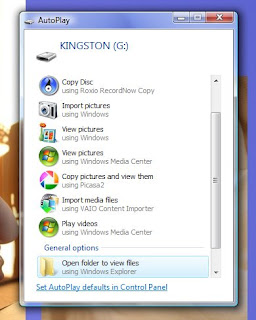
(click on the photo to see a larger image)
Select "Open folder to view files", to see the contents.
If nothing happens when you've inserted your flash drive …
click on Start to get up the Start menu,
select My Computer / Computer (in Vista),
and then select Removable Disk (or similar) to access your
flash drive.
If you’re using a SanDisk flash drive, you will have to
click on the folder "CruzerLock2" to open it up.
Yet another way of starting up a flash drive is ...
Right click on Start > Explore ... wait 15-30 seconds for
Windows to fully explore your hard drive. Scroll down the
list to find your flash drive (and then click on the link).
To transfer data onto your Desktop ...
1. Copy & paste (Ctrl+C and then Ctrl+V)
2. Drag & drop ... which is quicker.
To transfer stuff from your computer onto your flash drive,
use either (1) or (2).
With “drag and drop”, you’re just transferring a copy onto your
flash drive, (or a copy from the flash drive onto your computer).
To close the session ...
Look at the right hand corner of the taskbar (at the bottom of
the screen).
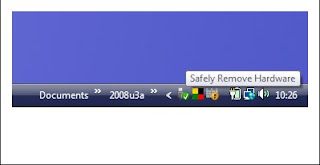
Find the little green icon for "Safely Remove Hardware".
You will see that on my computer, this is next to the square AVG
icon (the flag with 4 colours on it). The green icon might not
be visible, in which case click on the white arrow to reveal the
hidden icons.
Click on the green icon and then click on the subsequent pop-up
(saying it's now safe to remove the hardware). You can now remove
your flash drive. One of our members told us that he lost some info
on his flash drive when he didn't go through this procedure.
Flash drives are wonderful devices for temporary storage of
documents and photos. They are lightweight and easy to use,
and they are great for transferring info from one computer to
another. They come in a variety of sizes and styles.
You can buy them at computer shops in Nottingham (such as
Compuplus Direct at 13 Mansfield Rd., roughly opposite House
of Fraser), or from stores like Curry’s.
If you have a computer with an old version of Windows on it,
a flash drive may not work (so you should check the
specification with the retailer). The latest flash drives
wouldn’t work with my old Windows 98 machine.
For Windows XP & Vista users ...
Put the flash drive into a USB port on your computer.
A small window/menu should then pop up onto your screen.

(click on the photo to see a larger image)
Select "Open folder to view files", to see the contents.
If nothing happens when you've inserted your flash drive …
click on Start to get up the Start menu,
select My Computer / Computer (in Vista),
and then select Removable Disk (or similar) to access your
flash drive.
If you’re using a SanDisk flash drive, you will have to
click on the folder "CruzerLock2" to open it up.
Yet another way of starting up a flash drive is ...
Right click on Start > Explore ... wait 15-30 seconds for
Windows to fully explore your hard drive. Scroll down the
list to find your flash drive (and then click on the link).
To transfer data onto your Desktop ...
1. Copy & paste (Ctrl+C and then Ctrl+V)
2. Drag & drop ... which is quicker.
To transfer stuff from your computer onto your flash drive,
use either (1) or (2).
With “drag and drop”, you’re just transferring a copy onto your
flash drive, (or a copy from the flash drive onto your computer).
To close the session ...
Look at the right hand corner of the taskbar (at the bottom of
the screen).

Find the little green icon for "Safely Remove Hardware".
You will see that on my computer, this is next to the square AVG
icon (the flag with 4 colours on it). The green icon might not
be visible, in which case click on the white arrow to reveal the
hidden icons.
Click on the green icon and then click on the subsequent pop-up
(saying it's now safe to remove the hardware). You can now remove
your flash drive. One of our members told us that he lost some info
on his flash drive when he didn't go through this procedure.
Monday, October 20, 2008
Researching your ancestors on the internet.
This coming Thursday I will show you 40+ websites, which
will hopefully help you get going with your family history.
I'm going to list them all here, so you can browse through
them at your leisure, and in case you're unable to attend
our Computer Club session (starting at 11.30am in Room 2).
I hope to see you there.
>>>>>>>>>>>>>>>>>>>>>>>>>>>>>>>>>>>
(JH updated this list in November 2010)
Free BMD http://www.freebmd.org.uk/
Ancestry http://www.ancestry.co.uk/
You can access a cut-down version of this at our County libraries, eg at Arnold.
Notts Archives
.... http://www.nottinghamshire.gov.uk/home/leisure/archives.htm
Getting help
Notts Family History Society http://www.nottsfhs.org.uk/
Federation of Family History Societies
site map http://www.ffhs.org.uk/sitemap.php
research tips http://www.ffhs.org.uk/tips/first.php
Rootsweb http://rootsweb.ancestry.com/
Cyndi’s List http://www.cyndislist.com/
BBC Family History http://www.bbc.co.uk/familyhistory/
Family Records http://familyrecords.gov.uk/ (you will now be directed to other sites)
Society of Genealogists http://www.sog.org.uk/index.shtml
National U3A courses http://tinyurl.com/4aqmvo
Software packages to build your own family tree ..
Personal Ancestry File ~ LDS http://www.familysearch.org/eng/default.asp
(Click on link to this on the right hand side)
Roots Magic Platinum Ed. http://tinyurl.com/3yvrnm2
Family Historian http://www.family-historian.co.uk/
(said to be the only package with 100% Gedcom compatibility).
Family Tree Maker 2011 Deluxe Edition (Amazon) http://tinyurl.com/3yp8n89 (Amazon sells other versions also)
Legacy http://www.legacyfamilytree.com/
Heredis (for Mac users) http://www.myheredis.com/
Build/upload your family tree online …
Genes Reunited http://www.genesreunited.co.uk/default.aspx?ixc=u
Ancestry http://www.ancestry.co.uk/
... on Ancestry, click on "Family Trees" at the top.
GenCircles http://www.gencircles.com/my/
Specialist binders / albums http://genealogysupplies.com/
Finding BMD info …
Free BMD http://www.freebmd.org.uk/
Ancestry http://www.ancestry.co.uk/
FamilySearch IGI site http://www.familysearch.org/eng/default.asp
Immigrant/Emigrant history?
Moving Here http://www.movinghere.org.uk/
Every Generation http://www.everygeneration.co.uk/
India family history (British Library) http://indiafamily.bl.uk/UI
Ordering copies of certificates...
The General Register Office http://www.gro.gov.uk/gro/content/certificates/
Copies of Wills (& to whom Probate was granted)
http://www.hmcourts-service.gov.uk/cms/1226.htm
..and The National Archives http://nationalarchives.gov.uk/
... on National Archives, do a word search for Wills.
Pre 1837 research
Latter Day Saints http://www.familysearch.org/eng/default.asp (LDS has the wonderful IGI)
FreeReg at Rootsweb http://freereg.rootsweb.com/
Pay-for-view family history http://www.findmypast.co.uk/home.jsp
You can access a good part of this free of charge at our City libraries.
Medieval guidance http://medievalgenealogy.org.uk/
Scotland & Ireland
Scotland’s People http://www.scotlandspeople.gov.uk/
Scotland’s Family http://www.scotlandsfamily.com/
Genuki for UK & Ireland http://www.genuki.org.uk/
The Irish General Register http://www.groireland.ie/about_us.htm
N. Ireland General Register http://www.groni.gov.uk/
Other sites of interest
Lists of UK Surnames http://www.uk-surnames.com/ (JH added this, November 2010)
British Origins http://britishorigins.com/
Scots Origins http://scotsorigins.com/
Commonwealth War Graves http://www.cwgc.org/
Service Pals http://www.servicepals.com/
Timesonline archives http://tinyurl.com/4udbp2
(Try searching for historical events free of charge on Wikipedia
... eg the Irish Potato Famine)
Old Bailey proceedings http://www.oldbaileyonline.org/
Searching for places & people who lived there
Curious Fox http://www.curiousfox.org.uk/uk/front2.lasso
Try googling the place name + history/photo/forum
Try googling your name / name of ancestor
… put name in inverted comas and add a location
http://www.google.co.uk/ ...
John Hollins (in pages from the UK) ... 28,000 entries
“John Hollins” ... 18,500 entries
Hollins family trees:
Vicki Backhouse’s GenCircles site ..
http://www.gencircles.com/users/vickib65/1/data/8384
This is my great uncle Fred's ancestry, that Vicki has been
working on. Vicki is a professional genealogist and is a
distant cousin of mine.
Jenny Hollins’ site …
http://bobhewitt.co.uk/Genealogy/JennyHollinsAncestors/a1.htm
Jenny has traced the Hollins family line back 10 generations.
This coming Thursday I will show you 40+ websites, which
will hopefully help you get going with your family history.
I'm going to list them all here, so you can browse through
them at your leisure, and in case you're unable to attend
our Computer Club session (starting at 11.30am in Room 2).
I hope to see you there.
>>>>>>>>>>>>>>>>>>>>>>>>>>>>>>>>>>>
(JH updated this list in November 2010)
Free BMD http://www.freebmd.org.uk/
Ancestry http://www.ancestry.co.uk/
You can access a cut-down version of this at our County libraries, eg at Arnold.
Notts Archives
.... http://www.nottinghamshire.gov.uk/home/leisure/archives.htm
Getting help
Notts Family History Society http://www.nottsfhs.org.uk/
Federation of Family History Societies
site map http://www.ffhs.org.uk/sitemap.php
research tips http://www.ffhs.org.uk/tips/first.php
Rootsweb http://rootsweb.ancestry.com/
Cyndi’s List http://www.cyndislist.com/
BBC Family History http://www.bbc.co.uk/familyhistory/
Family Records http://familyrecords.gov.uk/ (you will now be directed to other sites)
Society of Genealogists http://www.sog.org.uk/index.shtml
National U3A courses http://tinyurl.com/4aqmvo
Software packages to build your own family tree ..
Personal Ancestry File ~ LDS http://www.familysearch.org/eng/default.asp
(Click on link to this on the right hand side)
Roots Magic Platinum Ed. http://tinyurl.com/3yvrnm2
Family Historian http://www.family-historian.co.uk/
(said to be the only package with 100% Gedcom compatibility).
Family Tree Maker 2011 Deluxe Edition (Amazon) http://tinyurl.com/3yp8n89 (Amazon sells other versions also)
Legacy http://www.legacyfamilytree.com/
Heredis (for Mac users) http://www.myheredis.com/
Build/upload your family tree online …
Genes Reunited http://www.genesreunited.co.uk/default.aspx?ixc=u
Ancestry http://www.ancestry.co.uk/
... on Ancestry, click on "Family Trees" at the top.
GenCircles http://www.gencircles.com/my/
Specialist binders / albums http://genealogysupplies.com/
Finding BMD info …
Free BMD http://www.freebmd.org.uk/
Ancestry http://www.ancestry.co.uk/
FamilySearch IGI site http://www.familysearch.org/eng/default.asp
Immigrant/Emigrant history?
Moving Here http://www.movinghere.org.uk/
Every Generation http://www.everygeneration.co.uk/
India family history (British Library) http://indiafamily.bl.uk/UI
Ordering copies of certificates...
The General Register Office http://www.gro.gov.uk/gro/content/certificates/
Copies of Wills (& to whom Probate was granted)
http://www.hmcourts-service.gov.uk/cms/1226.htm
..and The National Archives http://nationalarchives.gov.uk/
... on National Archives, do a word search for Wills.
Pre 1837 research
Latter Day Saints http://www.familysearch.org/eng/default.asp (LDS has the wonderful IGI)
FreeReg at Rootsweb http://freereg.rootsweb.com/
Pay-for-view family history http://www.findmypast.co.uk/home.jsp
You can access a good part of this free of charge at our City libraries.
Medieval guidance http://medievalgenealogy.org.uk/
Scotland & Ireland
Scotland’s People http://www.scotlandspeople.gov.uk/
Scotland’s Family http://www.scotlandsfamily.com/
Genuki for UK & Ireland http://www.genuki.org.uk/
The Irish General Register http://www.groireland.ie/about_us.htm
N. Ireland General Register http://www.groni.gov.uk/
Other sites of interest
Lists of UK Surnames http://www.uk-surnames.com/ (JH added this, November 2010)
British Origins http://britishorigins.com/
Scots Origins http://scotsorigins.com/
Commonwealth War Graves http://www.cwgc.org/
Service Pals http://www.servicepals.com/
Timesonline archives http://tinyurl.com/4udbp2
(Try searching for historical events free of charge on Wikipedia
... eg the Irish Potato Famine)
Old Bailey proceedings http://www.oldbaileyonline.org/
Searching for places & people who lived there
Curious Fox http://www.curiousfox.org.uk/uk/front2.lasso
Try googling the place name + history/photo/forum
Try googling your name / name of ancestor
… put name in inverted comas and add a location
http://www.google.co.uk/ ...
John Hollins (in pages from the UK) ... 28,000 entries
“John Hollins” ... 18,500 entries
Hollins family trees:
Vicki Backhouse’s GenCircles site ..
http://www.gencircles.com/users/vickib65/1/data/8384
This is my great uncle Fred's ancestry, that Vicki has been
working on. Vicki is a professional genealogist and is a
distant cousin of mine.
Jenny Hollins’ site …
http://bobhewitt.co.uk/Genealogy/JennyHollinsAncestors/a1.htm
Jenny has traced the Hollins family line back 10 generations.
Wednesday, October 08, 2008
The Drawing Canvas in Word
Here's something for those of you who are more advanced computer
users. If you attempt to put an autoshape/text box/photo onto a
Word document, then the drawing canvas might appear on your screen...

(to see a larger version of a photo, just click on it)
One of the advantages of using this feature, is that it stabilises
your autoshapes when it comes to printing out your Word document,
similar to using a text box.
Often I've found it to be a nuisance and have wondered how to
disable it. I've just read about how to do this in an old issue of
PC Answers magazine.
Click on Tools (on the top toolbar) > Options > General, and then
untick the box alongside "Automatically create drawing canvas when
inserting Autoshapes".

I know this is small print stuff, but I hope it will help a few of
you who have had similar problems,
Here's something for those of you who are more advanced computer
users. If you attempt to put an autoshape/text box/photo onto a
Word document, then the drawing canvas might appear on your screen...

(to see a larger version of a photo, just click on it)
One of the advantages of using this feature, is that it stabilises
your autoshapes when it comes to printing out your Word document,
similar to using a text box.
Often I've found it to be a nuisance and have wondered how to
disable it. I've just read about how to do this in an old issue of
PC Answers magazine.
Click on Tools (on the top toolbar) > Options > General, and then
untick the box alongside "Automatically create drawing canvas when
inserting Autoshapes".

I know this is small print stuff, but I hope it will help a few of
you who have had similar problems,
Subscribe to:
Posts (Atom)